

Compact design
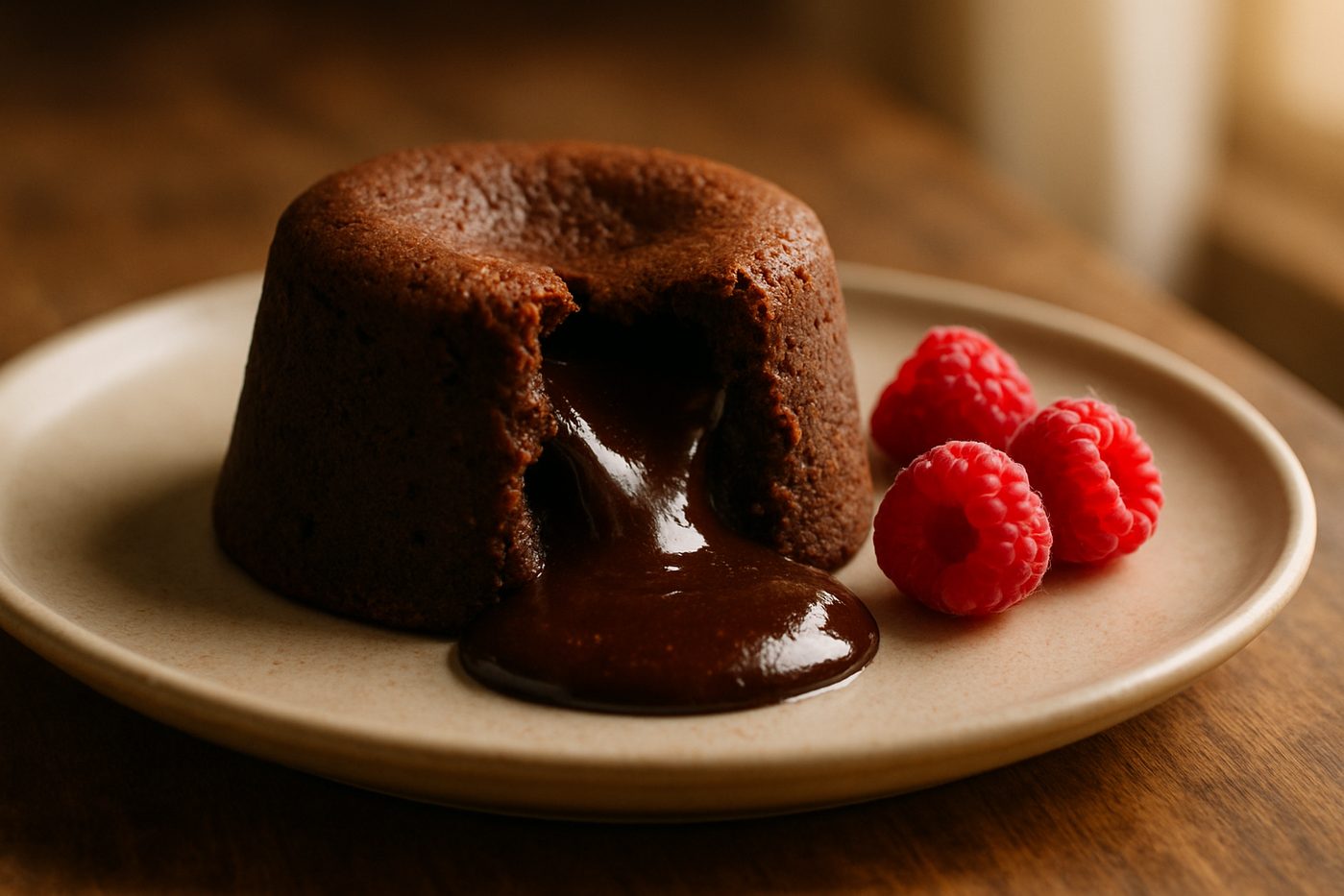
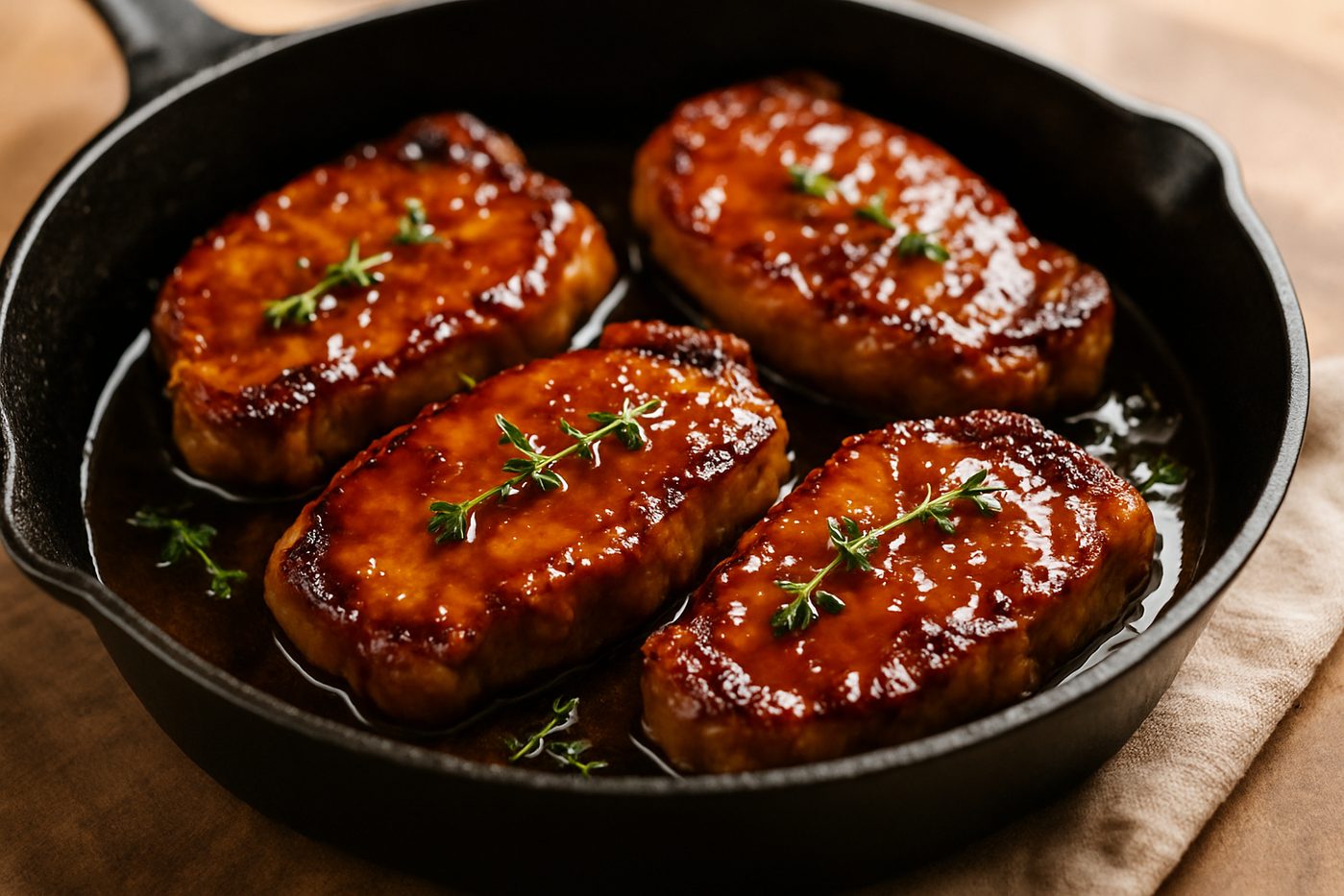
The recipe photo sits beside the title and details, and the layout keeps everything close together. Shoppers see more of the recipe at once.
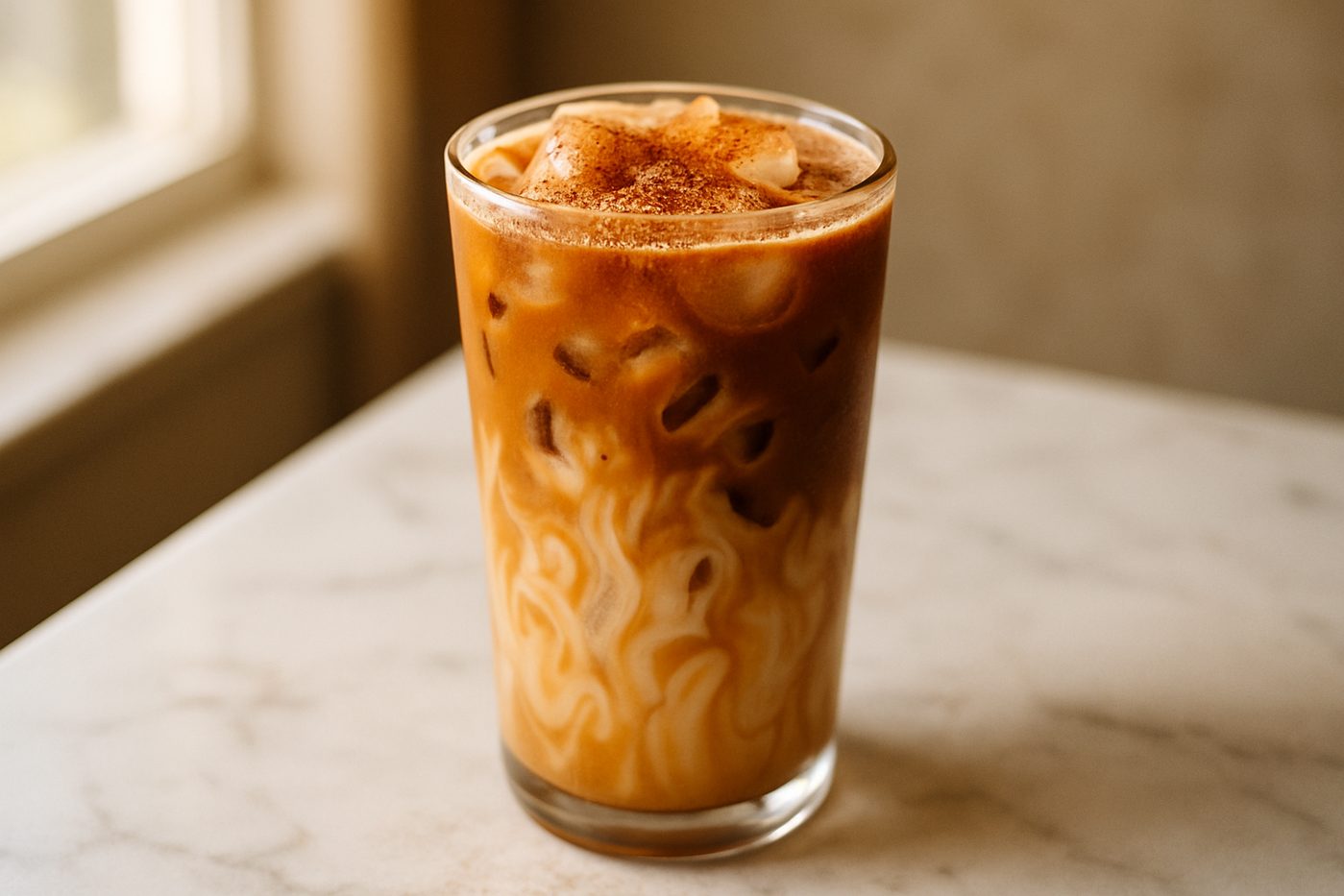
When to use the Compact design
Compact places the photo beside the recipe title and details instead of above them. Ingredients and directions follow below with tighter spacing.
A good fit for: recipes with long ingredient lists, stores that want the recipe to take less room on the page, and brands whose photos work at a smaller size.
What you get: photo and details side by side on wide screens, closer spacing, and a single column on phones and tablets.
Explore the other designs.
Pick one design for your whole store. Switch any time, on any plan.
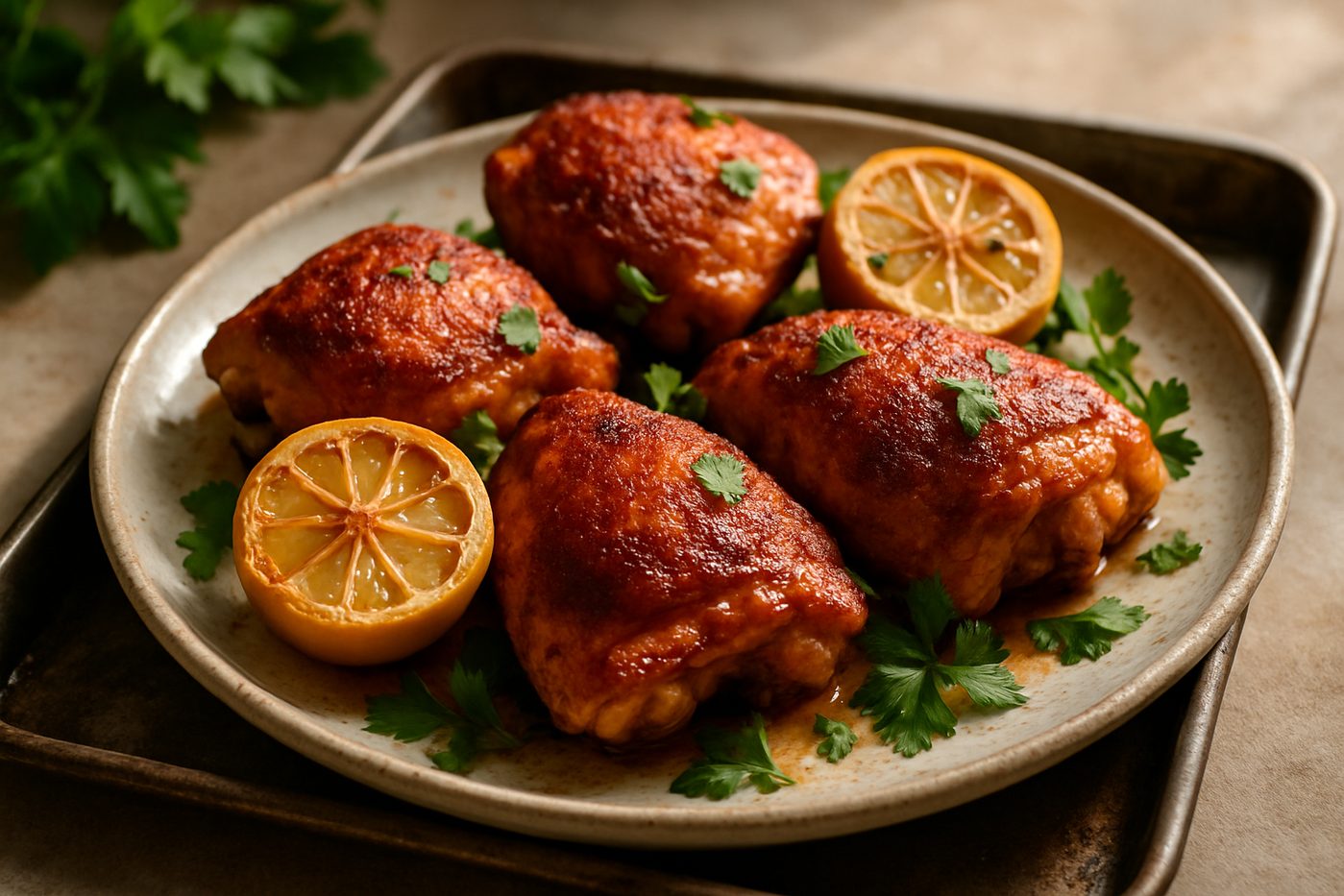
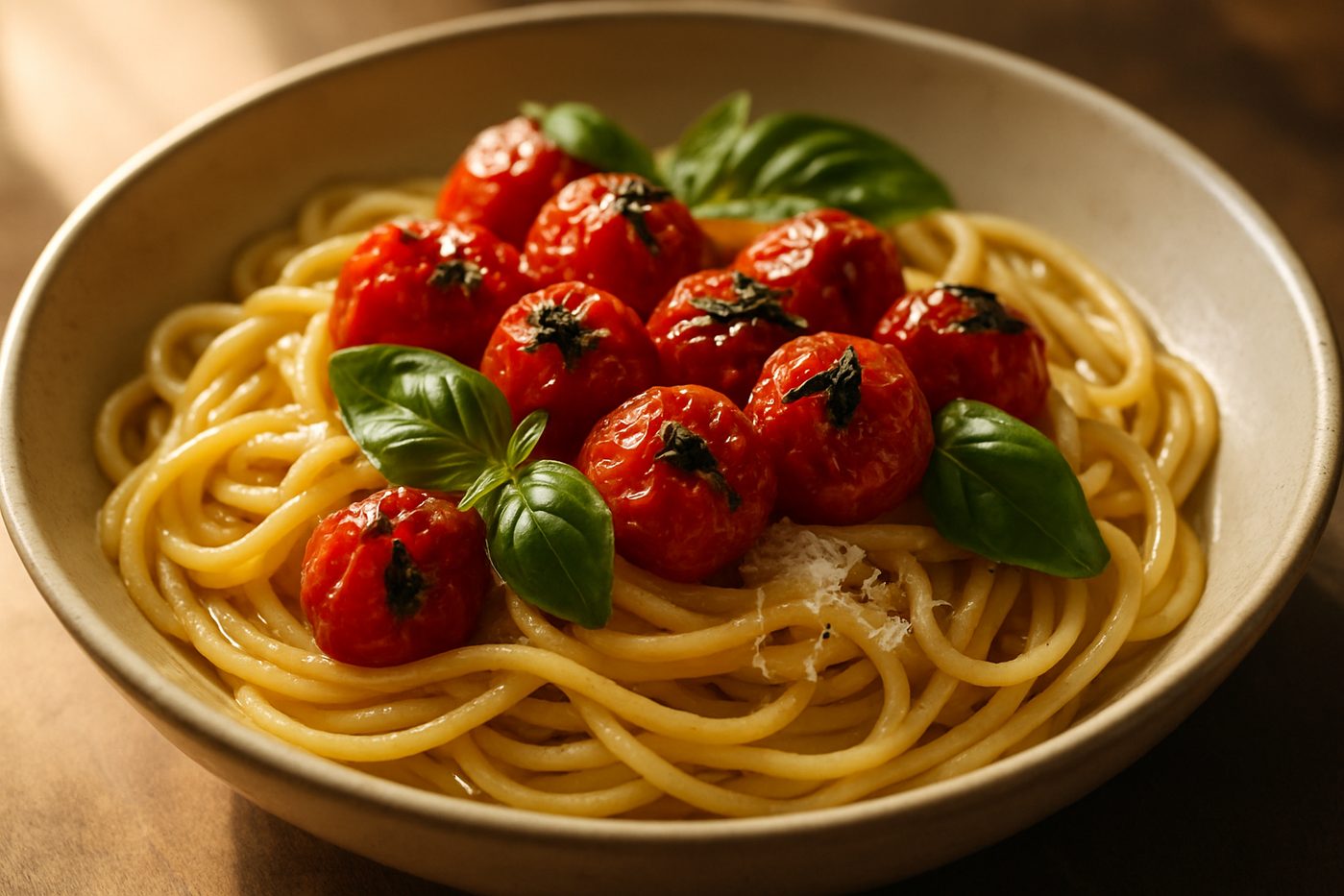
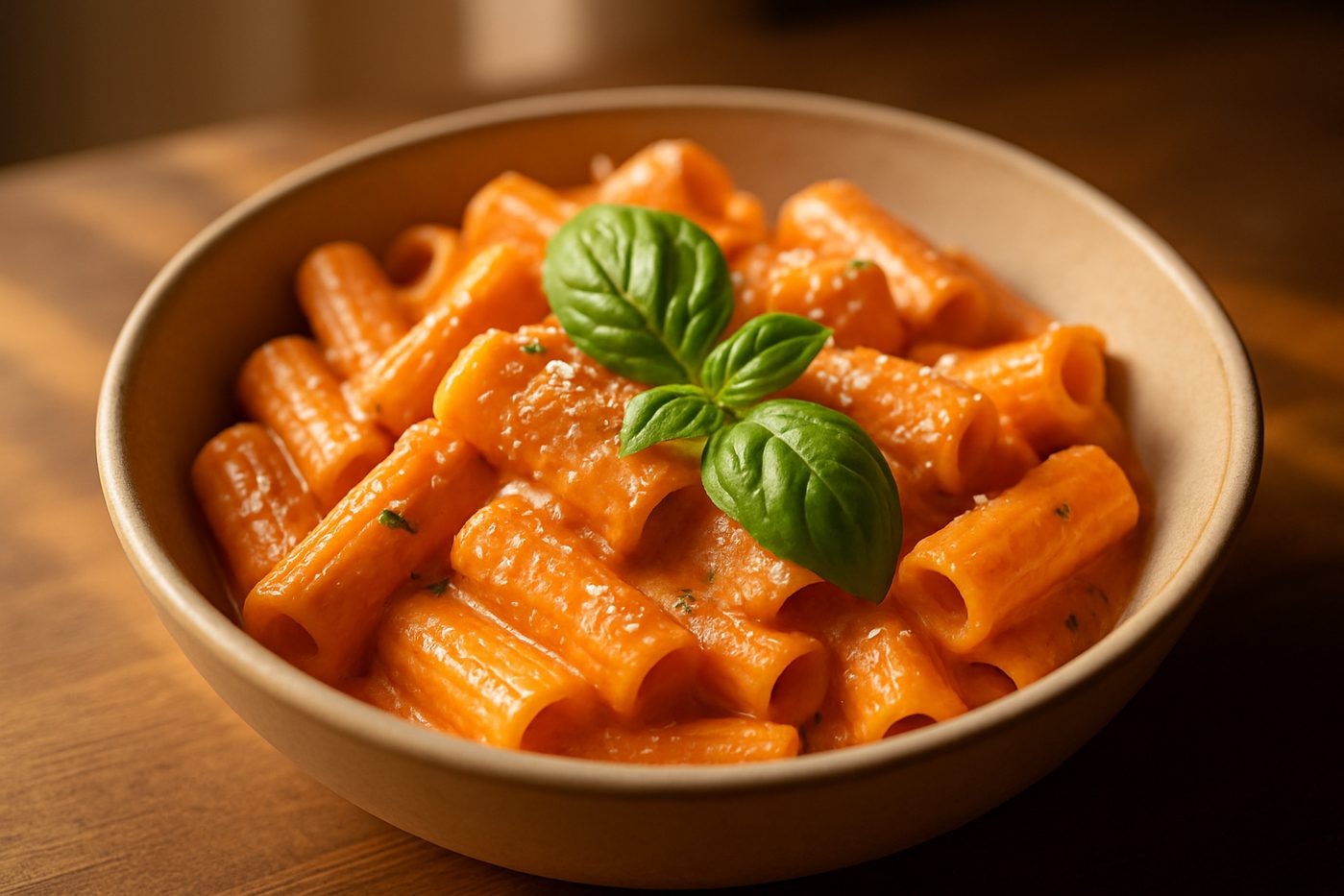
Questions about the design.
Common questions about this recipe card design
Can I change the colours in the Compact design?
Yes. Pick one accent colour for buttons, borders and links. The card uses your theme's fonts. For finer changes, add custom CSS in the app.
How does the Compact design look on phones?
On phones and tablets, the side-by-side layout becomes a single column, so the recipe stays easy to read.
Can I switch between recipe designs?
Yes. Recipe Kit has six designs: Hero, Editorial, Classic, Compact, Card and Card Vertical. You pick one for your store, and every recipe uses it. You can switch in the app at any time.
Does the Compact design support shoppable ingredients?
Yes, on the Growth plan. Link an ingredient to a product, and an Add to cart button shows beside it. Shoppers check out through your normal Shopify cart. All six designs support this.
Will the Compact design work with my Shopify theme?
Yes. The recipe card sits inside your theme and uses your theme's fonts. The layout stays the same from store to store.
Ready to create beautiful recipes?
Start on the free plan, or try a paid plan free for 14 days.